Automations
Automations are background behaviors that run on their own — either on a schedule or in response to something happening, such as a photo being indexed. They are how Yaffo keeps a library tidy without you clicking through the same steps by hand.
Open Utilities → Automations.
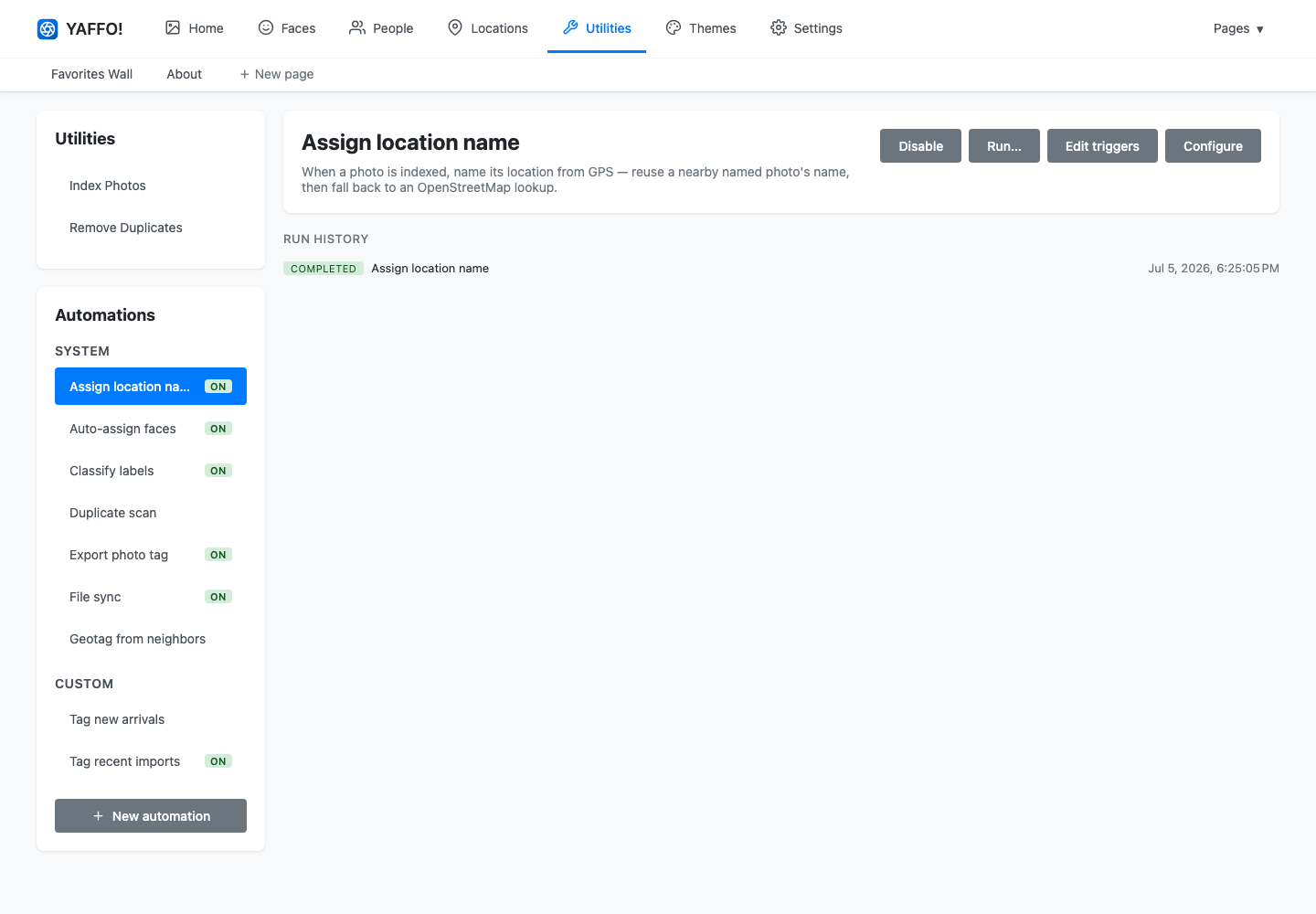
The sidebar lists automations in two groups, System and Custom. Select one to see its description, actions, and run history on the right. A green ON badge marks the ones that are currently enabled.
System Automations
System automations ship with Yaffo and cover its routine upkeep. They can be enabled, disabled, and tuned, but not deleted. They include:
- Assign location name — names a photo's location from GPS when it is indexed.
- Auto-assign faces — assigns new faces to people that already match.
- Classify labels — runs label classification on new photos.
- Duplicate scan — looks for duplicate photos.
- Export photo tag — writes selected tags back to photo metadata.
- File sync — keeps the index in step with your media folders.
- Geotag from neighbors — fills in missing GPS from nearby photos taken close in time.
Select a system automation to Enable or Disable it, Run… it on demand, Edit triggers, or Configure its tunable settings (for example, a similarity threshold).
Create an Automation
Click New automation to build your own. Give it a name, then describe what it should do in plain language — "tag every photo imported in the last day as New arrival" — and the assistant writes the automation for you.
While you build it, your work is a draft:
- Publish draft makes the draft the live version that actually runs.
- Discard throws the draft away.
Use Edit details to change the name or description, and Delete to remove a custom automation.
Test Before Publishing
Before you turn a custom automation loose on your whole library, try it on a small part of it. Click Test… in the editor and pick a file or folder.
The test is a safe dry-run:
- It runs the automation against only the indexed photos at or under the path you chose.
- It shows what the automation would do — such as which photos it matched — without actually changing anything.
- Nothing is written and no run is recorded in the automation's history.
You can test either the working draft or the currently published code, so you can check a change before publishing it. Once the results look right, use Publish draft to make it live.
Triggers: When an Automation Runs
An automation does nothing until it has a trigger. Open Edit triggers to add one — or several:
- Schedule — run on a repeating clock, set with a cron expression (for example, every night at 2 AM). Yaffo validates the expression as you type.
- Event — run when something happens in Yaffo, such as a photo being indexed.
An automation with no triggers stays idle until you add one.
Run and Review
You can run an automation yourself with Run now (or Run… for options), which is handy for testing or one-off cleanups.
Every run — scheduled, event-driven, or manual — is recorded under Run history, with a status such as COMPLETED and a timestamp. If an automation misbehaves, check its run history first to see what happened and when.
Related
Several system automations power features documented elsewhere:
- Labels and Auto-Classification — Classify labels.
- Locations & Map — Assign location name and Geotag from neighbors.
- Finding Duplicates — Duplicate scan.
Tunable defaults for system automations also appear in the Settings Reference.