Photo Details
The photo detail page is where you review one photo or video closely. Open it by clicking a card in the gallery.
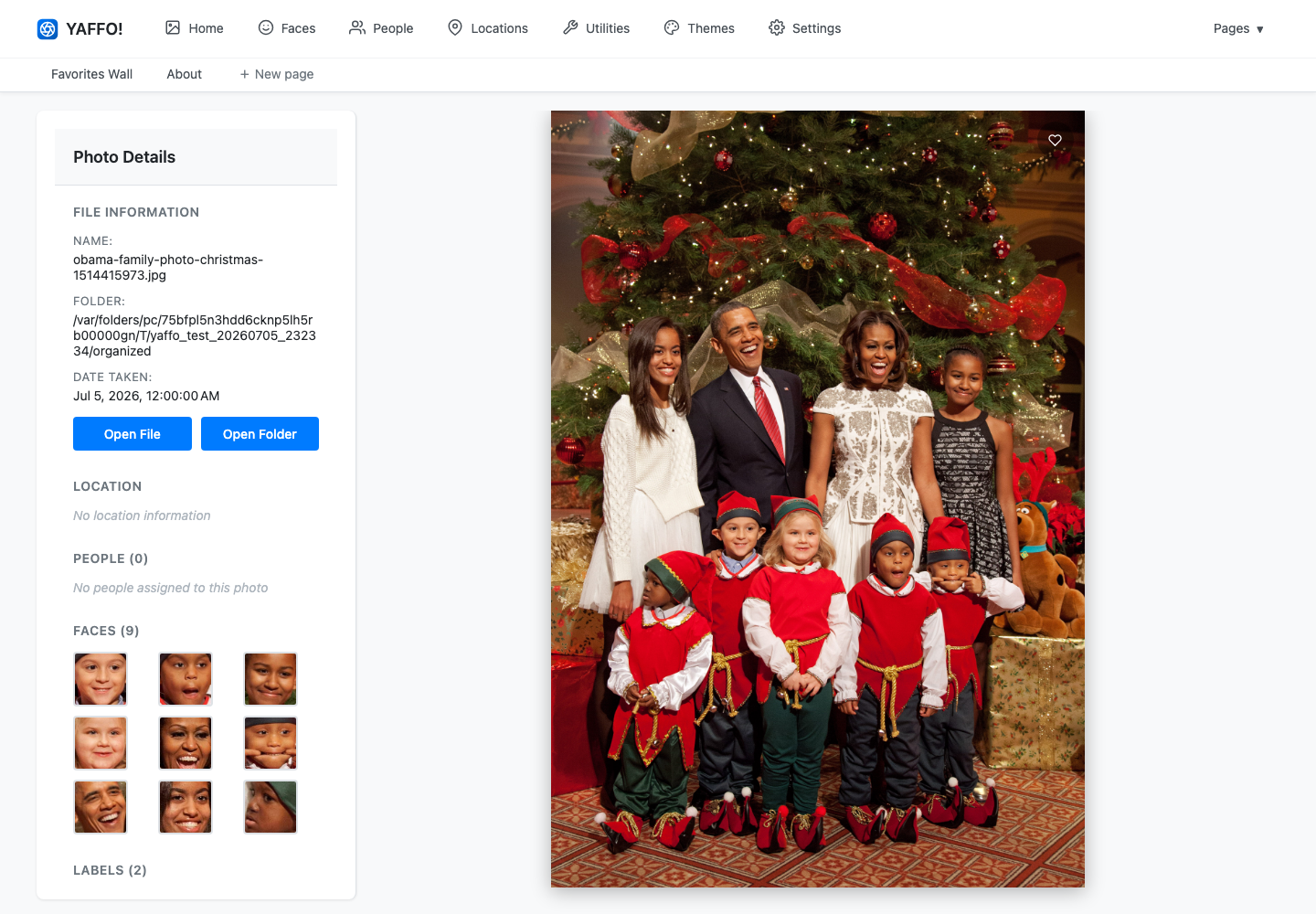
Review the Preview
The main area shows the selected photo or video.
For photos, Yaffo shows the image and can draw face highlights when you hover over detected face thumbnails in the sidebar.
For videos, Yaffo shows an in-browser player when the format is playable. If the video format cannot play in the browser, Yaffo shows the poster image and offers an Open in default player action.
Read File Information
The File Information section shows the file name and folder. When available, it also shows:
- date taken;
- camera or device;
- video duration;
- video resolution;
- video codec.
Use this section when you need to confirm which original file you are looking at.
Open the Original File or Folder
Use Open File to open the original media file with your operating system's default app.
Use Open Folder to open the folder that contains the original file.
These actions use your local operating system. If the file or folder no longer exists, Yaffo shows an error instead of opening it.
Mark a Favorite
Use the heart button on the preview to toggle favorite status. Favorites can be used later in gallery filters.
Favorite status is stored in Yaffo's database. If an automation exports tags or metadata, it may also write that change back to the file depending on your automation setup.
Review Location Information
The Location section shows a location name when one has been assigned. If the photo has GPS coordinates, it also shows the coordinates and a View on Map link.
If the page says No location information, Yaffo does not have GPS coordinates or a location name for that media item.
Use the Locations & Map guide for assigning or clearing location names in bulk.
Review People and Faces
The People section lists people assigned to faces in the photo. Click a person to open that person's face page.
The Faces section shows detected face thumbnails. Hover over a face thumbnail to highlight that face in the main photo when face coordinates are available.
Use the Faces & People guide for assigning, correcting, and reviewing people.
Review Labels
The Labels section shows automatic classification labels that Yaffo assigned to the media item. Label chips include confidence information in their tooltip.
Labels are read-only on this page. Manage the label vocabulary and reclassify photos from Settings. See Labels and Auto-Classification.
Edit Tags
The Tags section shows user-editable tags.
Click Edit Tags to open the tag editor. In the editor, you can:
- add a tag name and optional value;
- edit existing tag names or values;
- remove tags;
- save all tag changes at once.
Every tag must have a name. Values are optional.
Keyboard Shortcut
Press Escape to go back when the detail page was opened from another Yaffo page.