Themes
A theme controls how Yaffo looks — colors, typography, spacing, and borders. Yaffo ships with several themes, and you can design your own by describing the look you want.
Open Themes from the top navigation.
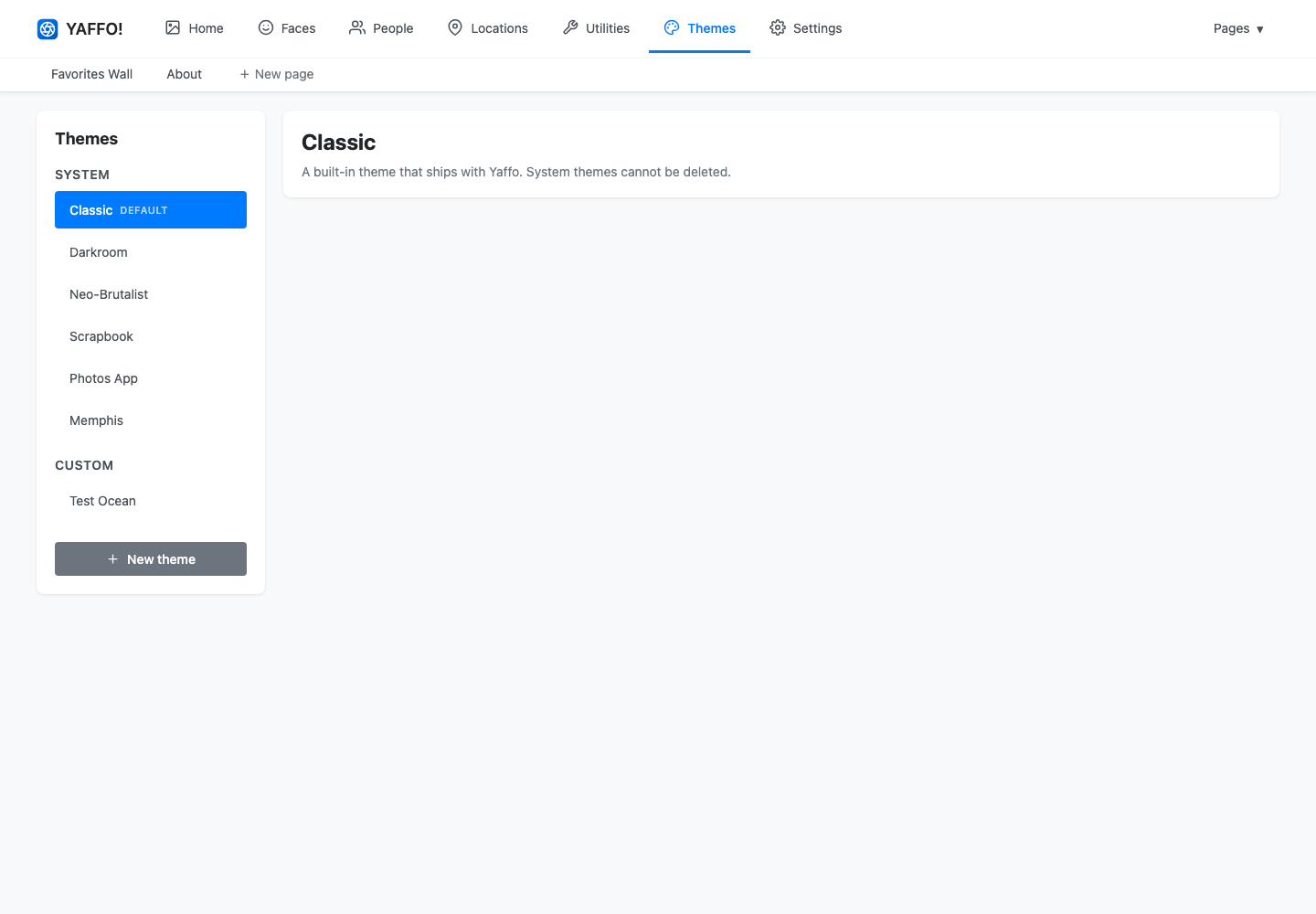
Choose a Theme
Themes are grouped into two sections:
- System themes ship with Yaffo — Classic, Darkroom, Neo-Brutalist, Scrapbook, Photos App, and Memphis. They can be used and copied from, but not deleted.
- Custom themes are the ones you create.
Select a theme to preview it, then click Make default to apply it across the whole app. The current default is marked in the list.
Create a Theme
Click New theme and give it a name, such as Midnight, Pastel, or
Forest. A new theme starts from the Classic look, and you shape it through a
conversation.
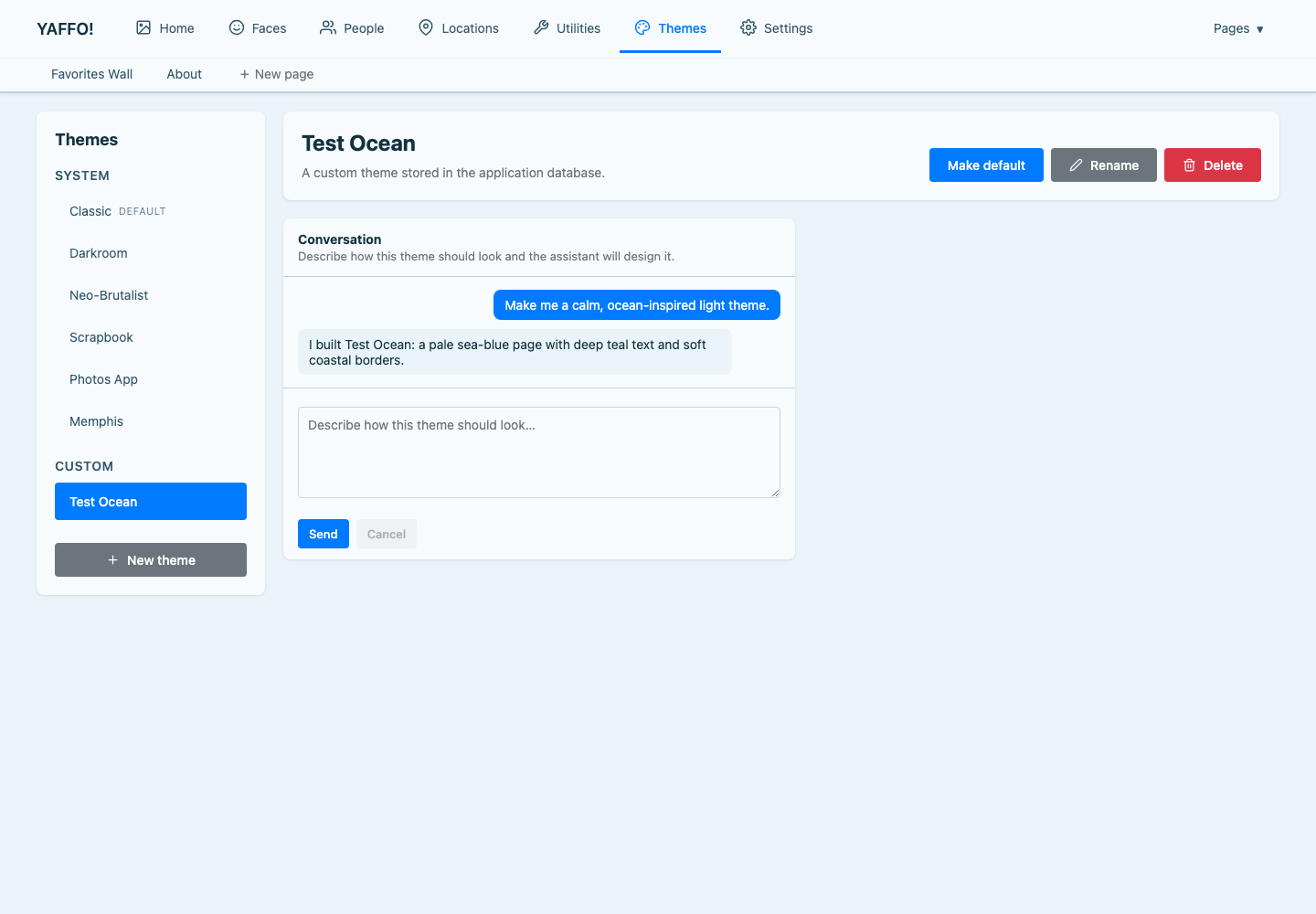
In the Conversation panel, describe how the theme should look and click Send. For example:
- a calm, ocean-inspired light theme
- high-contrast dark mode with warm accents
- soft pastel palette with rounded corners
The assistant redesigns the theme and the page updates so you can see the result. Keep the conversation going to refine it — adjust colors, contrast, or spacing until it feels right.
Publish, Rename, and Delete
While you are editing, your changes are a working draft layered over the last published version:
- Publish applies the draft so it becomes the theme everyone sees.
- Discard throws the draft away and returns to the last published version.
From a theme's editor you can also:
- Make default — apply the theme across the app.
- Rename — change the theme's name. Renaming also updates the theme's web address, so any saved links to it will change.
- Delete — remove a custom theme. System themes cannot be deleted.
Themes apply everywhere, including your Custom Pages.