Getting Started
Yaffo is a local photo organizer. You point it at folders on your computer, it indexes your photos and videos, and then you can browse, filter, tag, map, deduplicate, and build pages from your own library.
This guide takes you from installation to your first indexed photos.
Install
Yaffo currently installs as a Python package. macOS and Windows distributables are a work in progress and may be added if there is sufficient demand for the product.
You need:
- Python 3.13
- pipx
- A terminal or command prompt
Yaffo downloads ExifTool and other runtime assets during setup, so you do not need to install ExifTool separately.
Install Yaffo with pipx:
pipx install yaffo
Yaffo pulls in a sizeable set of image, video, machine-learning, and web-app dependencies. pipx keeps those dependencies in a dedicated virtual environment for Yaffo instead of mixing them into your system Python or another project's environment.
Then run the setup helper:
yaffo setup
Setup prepares the local database, downloads runtime assets, and can install a desktop shortcut. After setup, launch Yaffo with:
yaffo
Yaffo starts a local web app and opens it in your browser. By default, it runs on
http://127.0.0.1:5001.
While Yaffo is running, it also shows a tray/menu icon using the standard cross-platform tray icon library used by the app. Use that icon to reopen Yaffo or quit the background app:
- Windows: look in the notification area at the right side of the taskbar. It may be inside the hidden-icons chevron.
- macOS: look in the menu bar near the clock and system status icons.
- Linux: look in your desktop environment's system tray or status area. Some Linux desktops hide or disable tray icons by default; in that case, keep the browser tab open or relaunch Yaffo from the terminal when needed.
Choose Your Photo Folders
Open Settings and add one or more media directories. These are the folders Yaffo scans for photos and videos.
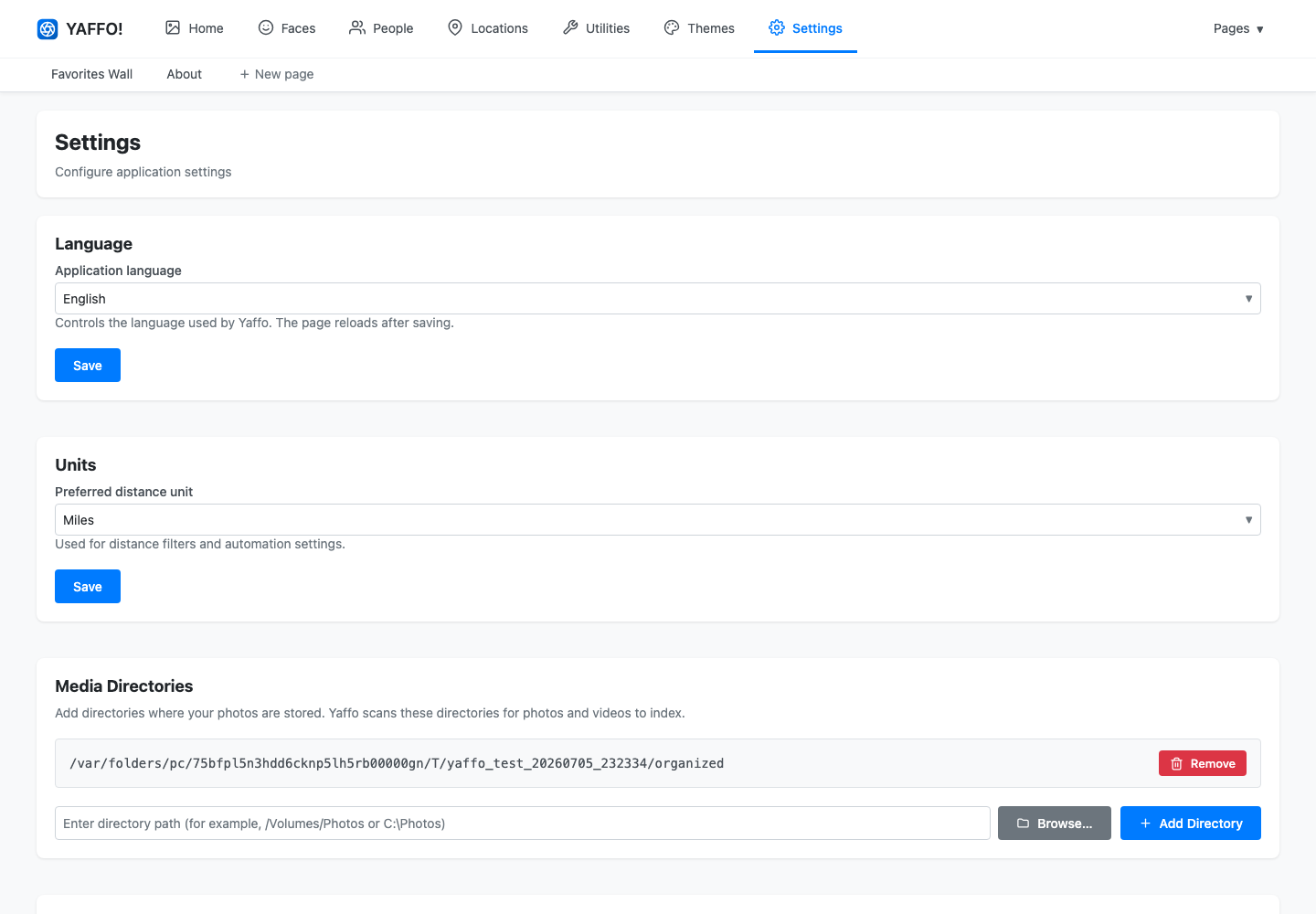
Yaffo stores its own database, thumbnails, logs, and temporary files separately from your photo folders. Your original photo folders remain where they are.
Index Your First Photos
Go to Utilities → Index Photos.
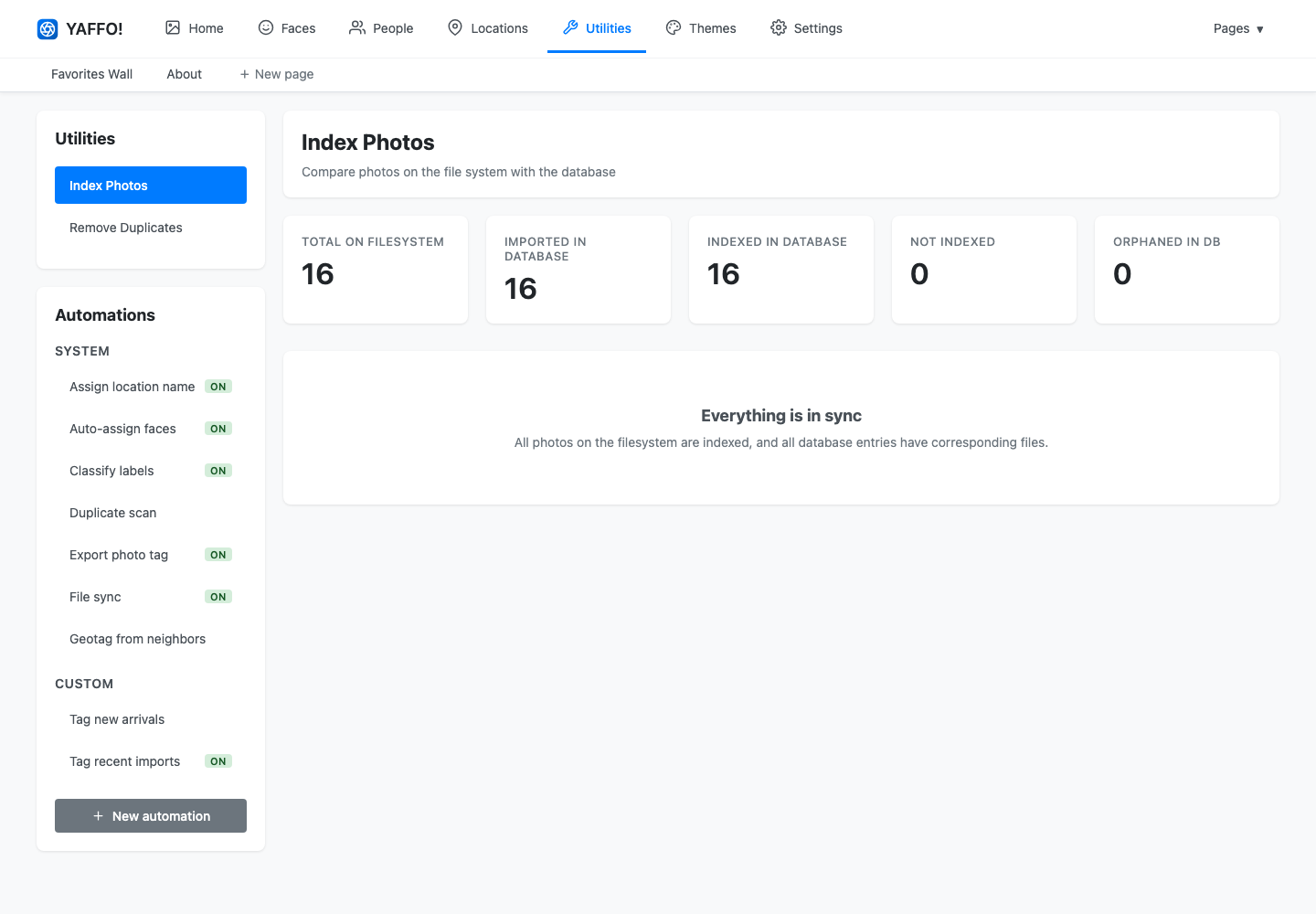
Yaffo scans the configured folders and shows which files are new, already indexed, or no longer present. Start the sync to import new files into the library index.
Indexing may take a while for large libraries. During indexing, Yaffo creates thumbnails, reads metadata, detects faces, prepares labels, and records location data when GPS metadata is available.
Browse Your Library
After indexing, go to Home. Your library appears as a grid of photos and videos.

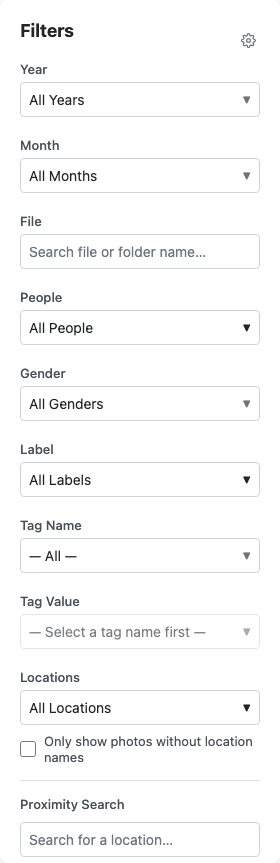
Use the filter sidebar to narrow the library by date, people, labels, tags, location, favorites, media type, device, and file path.
Open a Photo
Click a photo to open its detail page.

The detail page shows the media preview, metadata, people, labels, tags, and location information. This is where you review and correct what Yaffo found.
What Yaffo Adds
Once your first photos are indexed, Yaffo can help you:
- Browse and filter your whole library.
- Review faces and assign them to people.
- Find duplicate or near-duplicate photos.
- View GPS-tagged photos on a map.
- Add tags and favorite important photos.
- Use automatic labels such as
dog,beach,wedding, or your own custom labels. - Create custom pages from your photo library.