Finding Duplicates
The duplicate utility helps find photos and videos that appear to be the same or nearly the same. Use it as a review workflow, not as an automatic delete button.
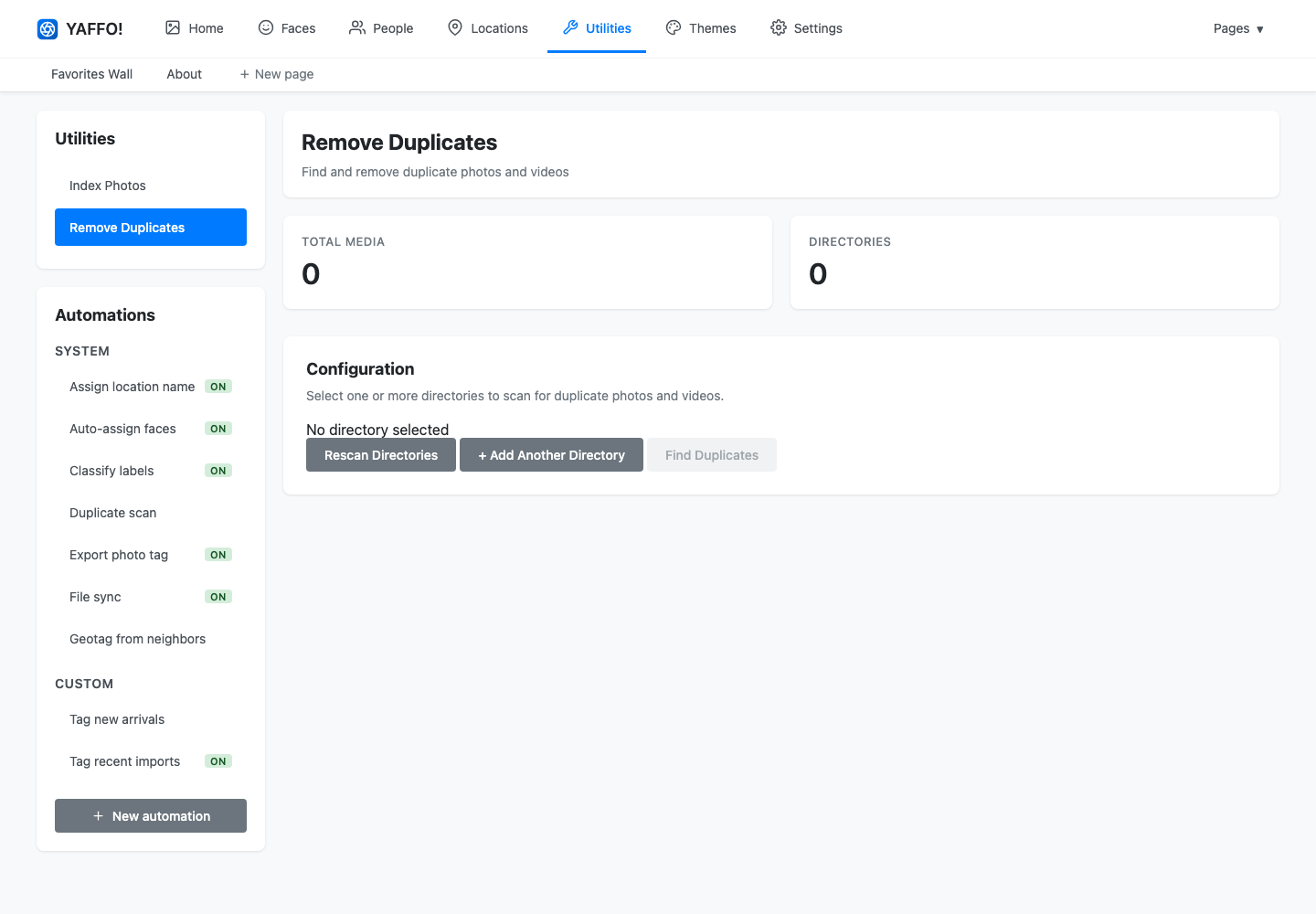
How Duplicate Detection Works
Yaffo scans selected directories and compares media visually. This can find files that look alike even when filenames, folders, or metadata differ.
Because visual comparison is not the same as human judgment, always review the results before removing anything.
Start a Duplicate Scan
Go to Utilities → Remove Duplicates.
- Add one or more directories to scan.
- Click Rescan Directories if you change the directory list.
- Click Find Duplicates.
Yaffo starts a background job. When the job finishes, open the results.
Review Duplicate Groups
Duplicate results are shown in groups. Each group contains files Yaffo believes belong together.
For each group, compare:
- the image or video preview;
- the filename;
- the folder path;
- dates or other visible context;
- whether one copy is clearly better or more complete.
Select only the files you want Yaffo to act on. Leave the keeper unselected.
Choose an Action
The results page supports several actions:
- Move to Trash: sends selected files to the operating system trash when possible. This is the safest cleanup option.
- Move to Folder: moves selected files to a folder you choose. This is useful for quarantine or manual review.
- Permanently Delete: deletes selected files directly.
Prefer Move to Trash or Move to Folder until you trust the results for your library.
Remove Selected Duplicates
After selecting duplicates and choosing an action, click Remove Selected Duplicates.
Yaffo starts a background job for the removal action. The original duplicate scan result is replaced by the removal job once processing starts.
Safety Checklist
Before removing files:
- make sure every selected file is truly a duplicate;
- make sure at least one good copy remains unselected in each group;
- prefer Move to Trash or Move to Folder for the first few runs;
- avoid Permanently Delete unless you have backups;
- run a small scan first if you are testing the workflow.
When No Duplicates Are Found
If Yaffo reports no duplicates, it means the scanned directories did not contain media that matched closely enough. Try a broader directory or verify that the media has been indexed and is readable.