Custom Pages
Custom pages let you build your own views of the library and pin them to the top navigation, next to Home, Faces, and the rest. Instead of laying out a page by hand, you describe what you want and an assistant drafts the building blocks — widgets — for you.
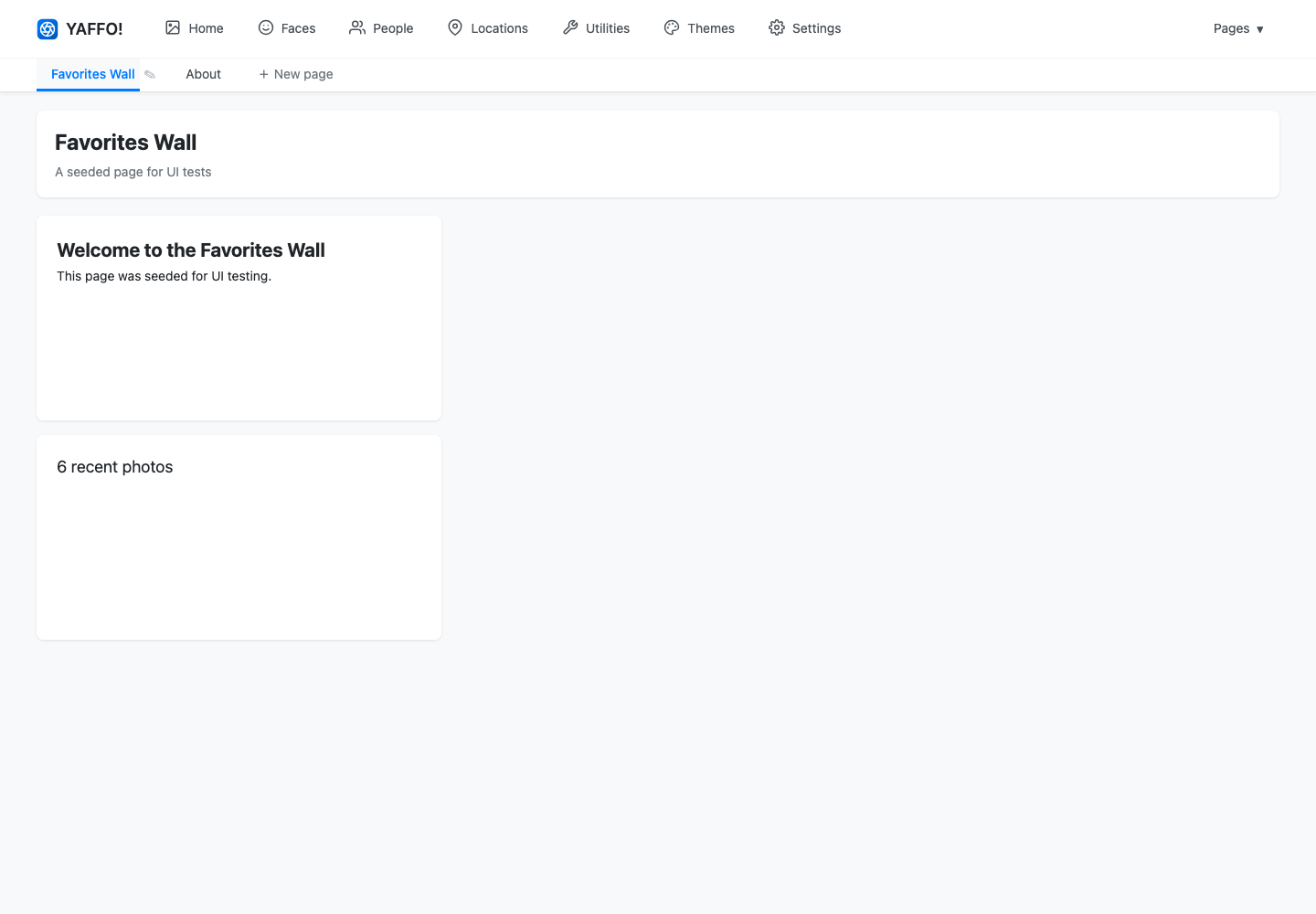
Create a Page
Click + New page in the top navigation. Yaffo creates an empty page and opens it in the design view, where you can name it and start adding content.
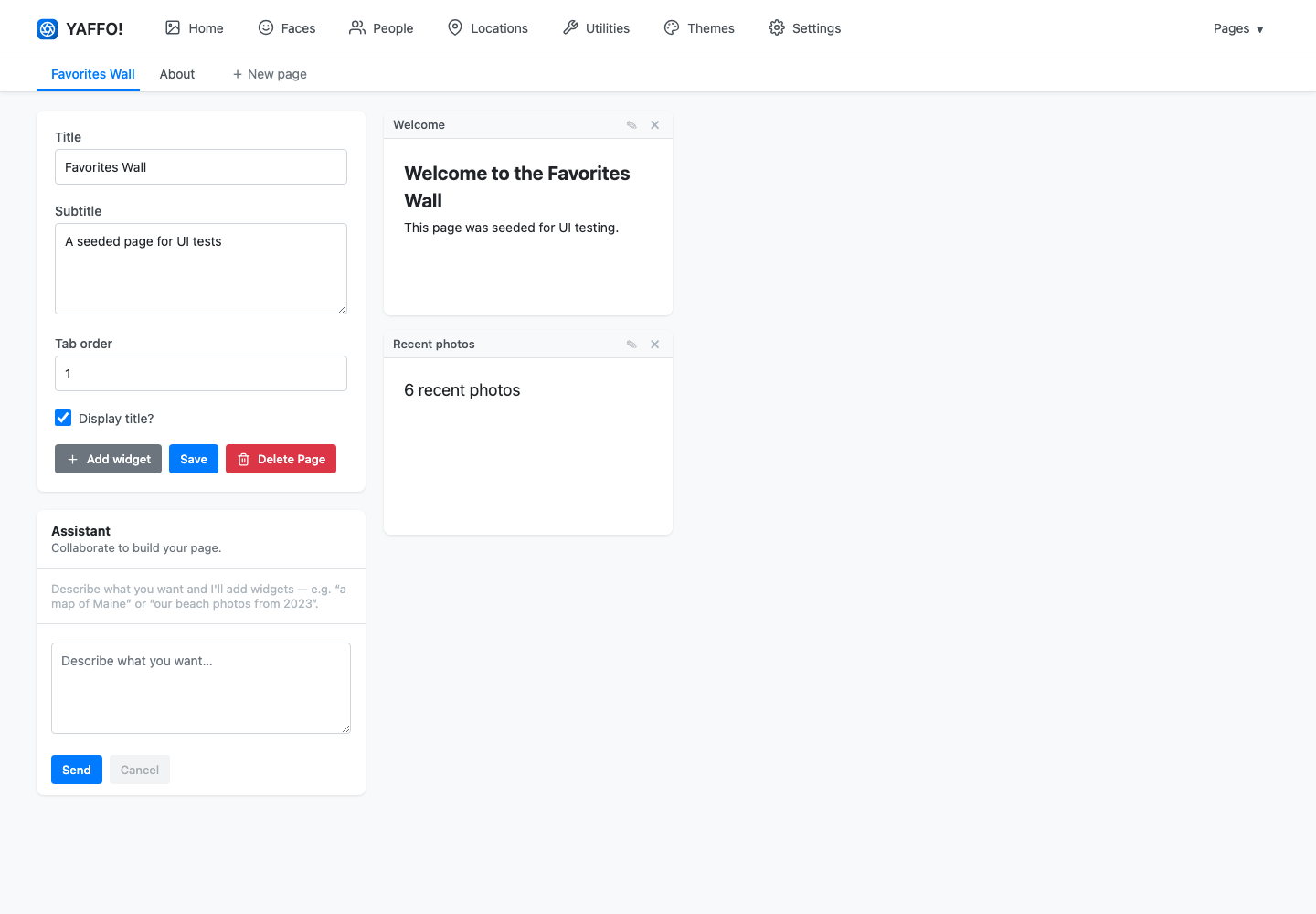
The design view has three parts:
- Page settings (left) — the Title, an optional Subtitle, a Tab order number that sets where the page sits in the navigation, and a Display title? toggle. Click Save to keep changes, or Delete Page to remove the page entirely.
- The Assistant (left, below settings) — where you describe the widgets you want.
- The grid (right) — where your widgets live and can be arranged.
Work with Widgets
A widget is a single block on the page — a heading, a wall of photos, a map, a list of people, and so on.
To add one, type a description into the Assistant and click Send. For example:
- a polaroid wall of our Maine trip in summer 2023
- a map of everywhere we took photos this year
- my six most recent favorites
The assistant drafts a widget and drops it onto the grid. You decide how it looks; Yaffo always fills in the actual photo data from your library, so a widget only ever shows media you already have.
Once widgets are on the grid you can:
- drag a widget to move it;
- resize a widget by its edges;
- remove a widget with the × on its header;
- keep the conversation going to add more widgets or refine existing ones.
Click Save when the layout looks right.
Publish and Present
The page you see while designing is a working draft. Yaffo keeps your published page separate from in-progress edits, so anyone viewing the page always sees the last version you published — not a half-finished change.
When you are happy with the draft, publish it. The page then appears as a tab in the top navigation (and in the Pages menu) for everyone using your library. You can reopen the design view at any time to keep iterating; your live page stays untouched until you publish again.
Custom pages are one of several ways to organize a library. For how they fit alongside filters, favorites, and tags, see Organizing Photos. To restyle the whole app, including your custom pages, see Themes.