Browsing, Filtering, and Search
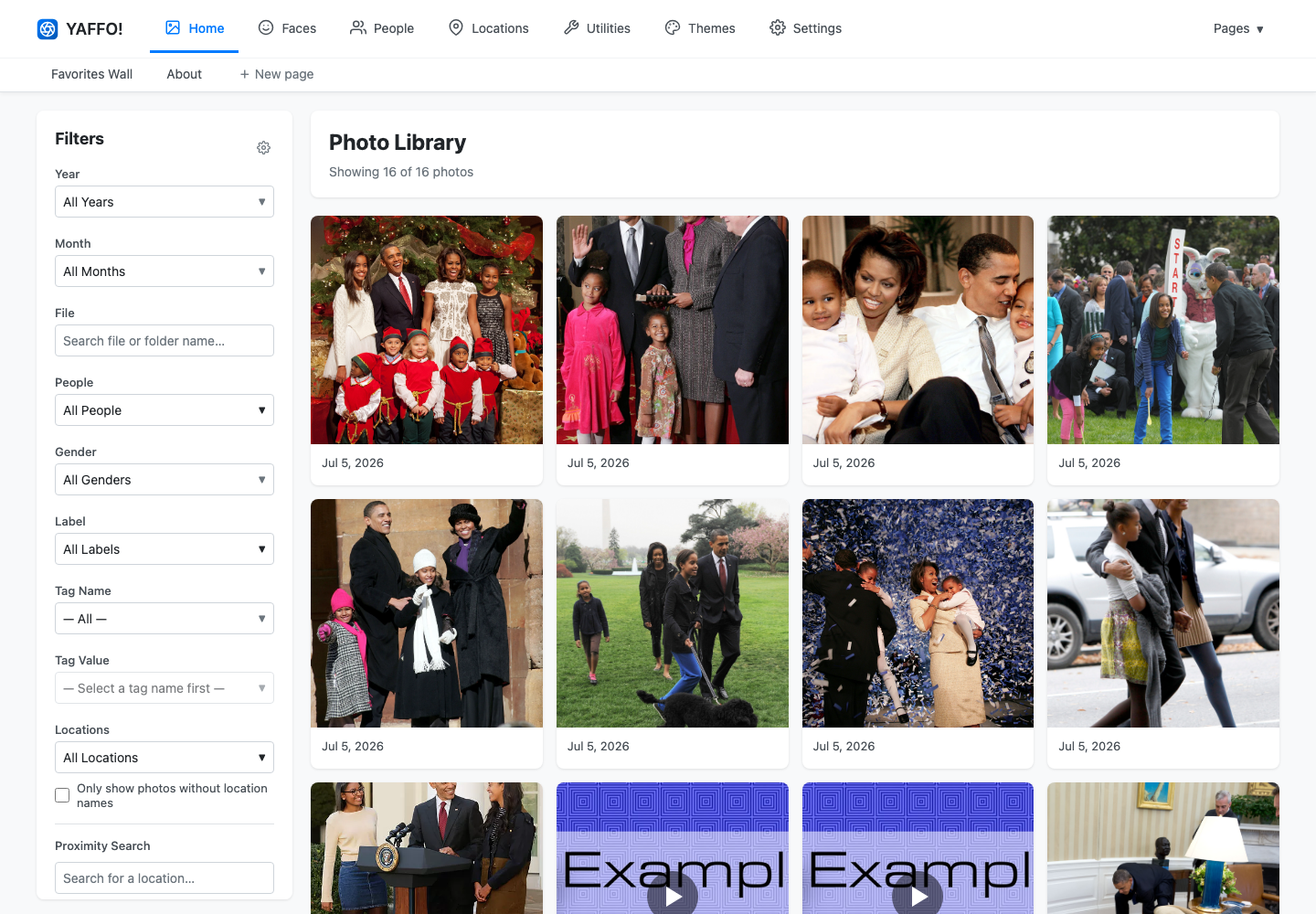
The Home page is the main photo library view. It shows indexed photos and videos as a grid, with filters on the left.
Browse the Gallery
Each card represents a photo or video in your indexed library. The gallery is ordered by date, with the newest media first.
Use the gallery to:
- scan recent photos quickly;
- open a photo or video detail page;
- spot videos by their video card controls;
- review dates and visible people at a glance;
- move through large libraries with pagination.
Click a card to open the media detail page.
Use the Filter Sidebar
The filter sidebar narrows the gallery to matching media.
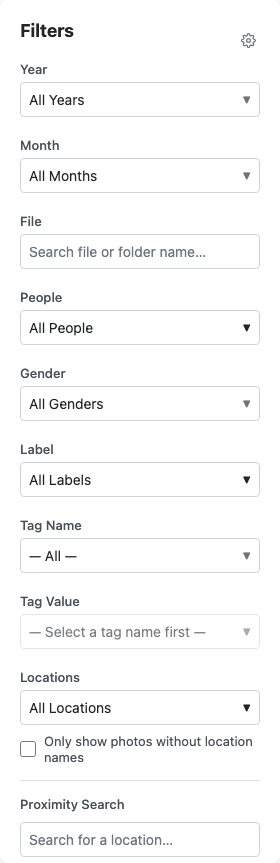
Common filters include:
- Year and Month: find media from a time period.
- File: search by file or folder name.
- People: show photos containing one or more people.
- Gender: filter by detected or assigned face gender metadata when present.
- Label: filter by automatic classification labels.
- Tag Name and Tag Value: filter by custom tags.
- Locations: filter by assigned location names.
- Only show photos without location names: find GPS-backed photos that still need a location name.
- Proximity Search: find photos near a place.
- Device: filter by camera or device metadata.
- Favorites: show only favorited media.
- Media Type: show photos only or videos only.
Click Apply Filters to update the gallery.
Match Any or All
Some filter groups let you choose how multiple selected values are matched.
Use any when a photo can match at least one selected value. For example, photos containing Alice or Bob.
Use all when a photo must match every selected value. For example, photos containing both Alice and Bob.
Not every filter benefits from all matching. A photo has only one assigned location name, so selecting all locations is treated like any matching.
Clear Filters
Click Clear Filters to return to the unfiltered gallery.
If a filter result looks empty, clear filters first. Then reapply one filter at a time to see which condition narrowed the results.
Configure the Sidebar
Click the filter configuration button in the sidebar header to choose which filter groups are visible. This is useful if you mostly use a smaller set of filters.
Filter layouts are page-specific. Changing the gallery sidebar does not necessarily change the Locations map sidebar.
Useful Searches
Try these common patterns:
- Find videos: set Media Type to Videos Only.
- Find photos from a year: choose a Year, then apply filters.
- Find unnamed locations: enable Only show photos without location names.
- Find photos from one camera: choose a Device.
- Find classified photos: choose one or more Label values.
- Find custom organization: choose a Tag Name, then a Tag Value.
When Results Look Wrong
If expected photos are missing:
- confirm the files have been indexed;
- clear filters and try again;
- check whether the filter is set to all instead of any;
- make sure the relevant people, labels, tags, or locations have been assigned;
- run Utilities → Index Photos if files were recently added or moved.