Settings Reference
This page lists the options on the Settings screen. Open Settings from the top navigation.
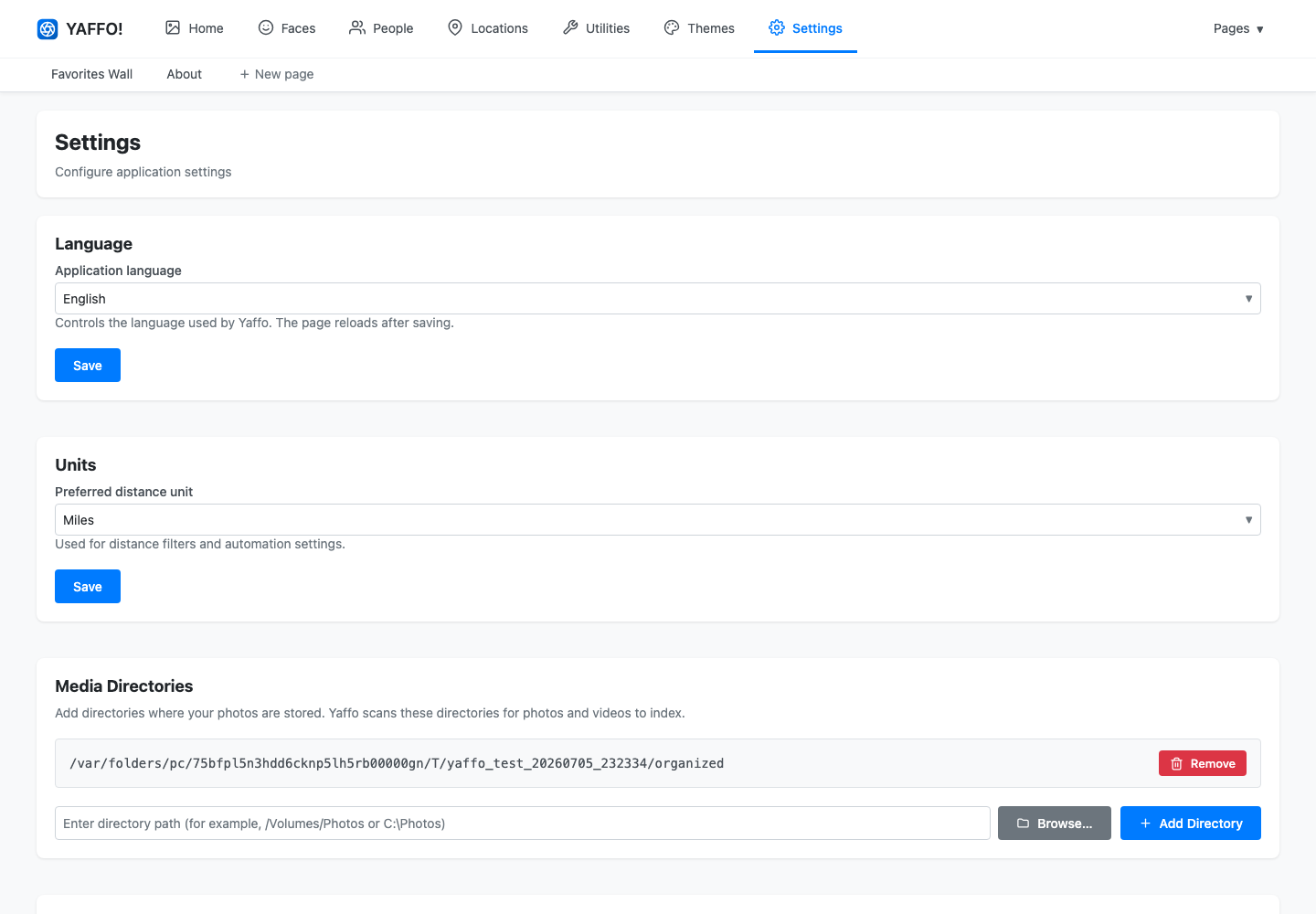
Most sections have their own Save button — changes take effect when you save that section.
Language
- Application language — the language Yaffo's interface uses. The page reloads after you save.
Units
- Preferred distance unit — miles or kilometers, used for distance filters and for automation settings that measure distance.
Media Directories
The folders Yaffo scans for photos and videos to index. Yaffo reads these files in place; it does not move or modify your originals.
- Add Directory — type a path or Browse… to a folder, then add it.
- Remove — stop scanning a folder. This does not delete anything on disk.
Media and thumbnail directories cannot be changed while an import or index is in progress. See Indexing & Library Management.
Thumbnail Directory
Where Yaffo stores the cropped face thumbnails it generates for quick loading. The section also reports the current directory, file count, and total size, and lets you change the location. A thumbnail directory must be set for face thumbnails to be generated.
AI Generation
Powers Yaffo's AI features, such as the page builder, theme designer, and custom automations.
- Model — the model used for AI generation.
The API key for the selected model's provider is stored securely in your operating system's credential store (the OS keychain), not in Yaffo's database.
Photo Labels
The vocabulary of labels Yaffo can auto-assign to photos.
- Add label — a label name (for example,
dog) with an optional prompt that describes what it should match (for example,people swimming in water). - Re-classify all photos — re-run classification across the library after changing the vocabulary.
See Labels and Auto-Classification for how labels are used.
System Information
Read-only build details and configured paths, including the build version. Useful when reporting a problem.
Automations
Scheduled and event-driven behaviors are configured on their own screen, under Utilities → Automations, not on the Settings page. Their tunable defaults are edited there through each automation's Configure panel. See Automations.